IPTV Troubleshooting Master Guide: How to Fix Buffering, Black Screens, EPG & Audio Sync
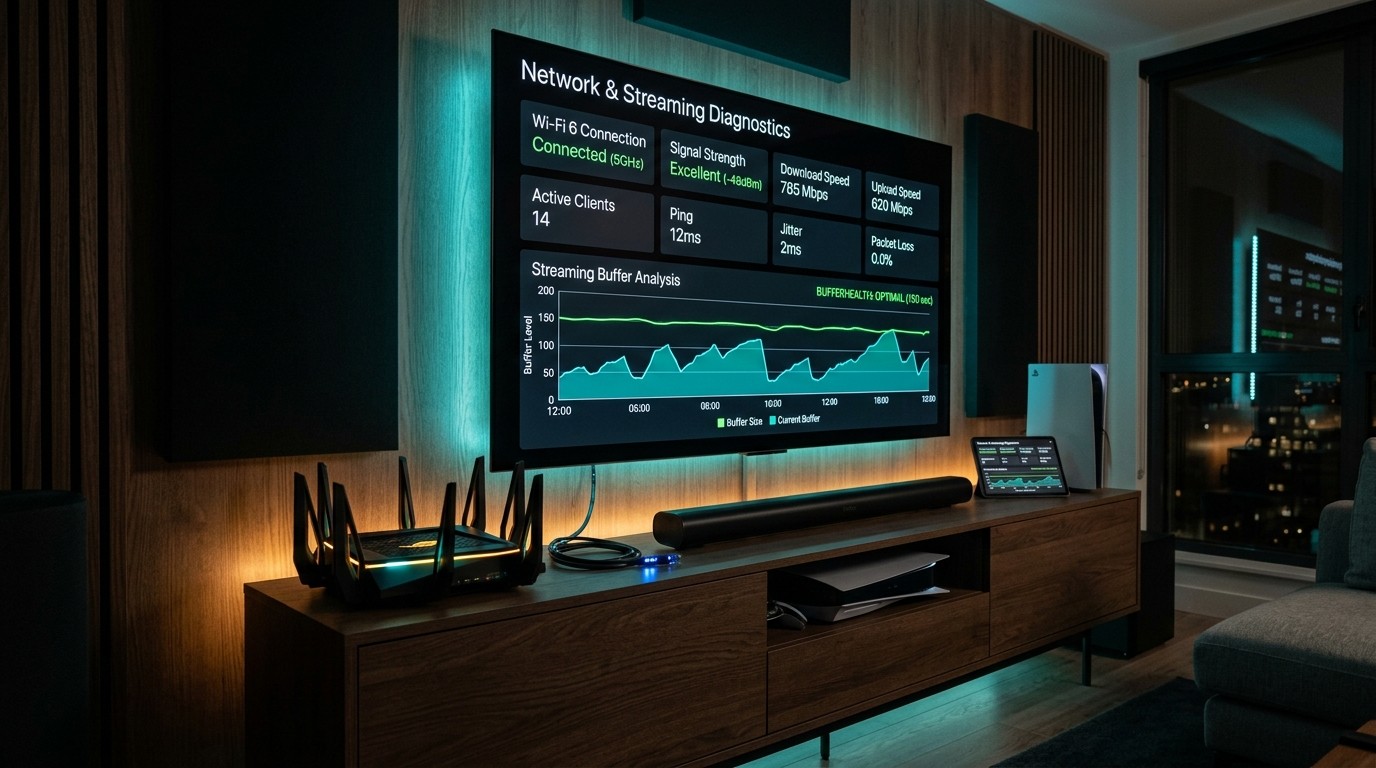
Nothing disrupts an evening of home entertainment faster than an IPTV stream that stutters, loops, freezes, or fails to launch entirely. Whether it is a devastating buffer circle right in the middle of a penalty shootout, an Electronic Program Guide (EPG) showing completely blank channels, or an ominous "HTTP 403 Forbidden" error code flashing on your screen, streaming failures can test anyone's patience.
When streaming issues arise, the instinctive reaction for many cord-cutters is to blame their IPTV provider's servers. However, empirical network diagnostics reveal a surprising reality: more than 80% of IPTV playback issues originate on the client side—caused by local Wi-Fi interference, router bufferbloat, improper player buffer settings, hardware video decoder mismatches, or automated ISP bandwidth throttling.
Understanding how to diagnose and resolve these issues systematically empowers you to eliminate stream interruptions permanently. This comprehensive master troubleshooting guide provides a step-by-step diagnostic framework used by enterprise network engineers, breaking down the root causes and permanent fixes for buffering, black screens, audio desynchronization, error codes, and player crashes across all major streaming devices.
1. The IPTV Diagnostic Framework: Isolating the Problem
Before executing random fixes, you must identify which layer of the streaming delivery pipeline has failed. An IPTV stream relies on four distinct architectural layers:
[THE 4-LAYER IPTV DIAGNOSTIC STACK]
┌────────────────────────────────────────────────────────────────────────┐
│ Layer 4: Provider Server & CDN Edge Cluster                            │
│ (Origin server load, upstream satellite encoder feeds, API endpoints)  │
├────────────────────────────────────────────────────────────────────────┤
│ Layer 3: Local Network & ISP Peering Route                             │
│ (Broadband speed, Wi-Fi interference, ISP DPI throttling, DNS servers) │
├────────────────────────────────────────────────────────────────────────┤
│ Layer 2: Player Application & Codec Engine                             │
│ (TiviMate, Smarters, buffer cache size, hardware vs software decoding) │
├────────────────────────────────────────────────────────────────────────┤
│ Layer 1: Hardware Device & Operating System                            │
│ (Firestick, Apple TV, available RAM, thermal state, background apps)   │
└────────────────────────────────────────────────────────────────────────┘
The 3-Minute Quick Isolation Test
To pinpoint the faulty layer instantly, execute these three rapid tests:
- Test a Single Alternate Channel: If Channel A is freezing but Channel B (in a different category) streams flawlessly, the issue is restricted to Channel A's upstream encoder feed (Layer 4). If every single channel is freezing, the issue is on your local network, device, or ISP (Layers 1, 2, or 3).
- Test on a Second Device: Open your subscription credentials on a secondary device (such as your smartphone or laptop over mobile 5G data). If the stream plays perfectly on your phone but freezes on your Firestick, the problem is your Firestick's hardware, app configuration, or home Wi-Fi (Layers 1 or 2).
- Test with a High-Speed VPN: Connect your device to a reputable VPN using the WireGuard protocol. If buffering instantly disappears, your Internet Service Provider is actively throttling your streaming connection (Layer 3).
2. Problem 1: Constant Buffering, Freezing, and Stuttering Loops
Buffering occurs when your player device consumes video data faster than your network can deliver it. When your player's internal memory buffer empties (a condition known as buffer underrun), video playback pauses while the player waits for new data packets to arrive.
[BUFFER UNDERRUN MECHANISM]
Incoming Data Stream: ──[Packet]───[Packet Loss]───[Delayed Packet]──>
                                   │
                                   ▼
Player RAM Cache:     [▓▓▓▓▓░░░░░] ──> Empties to [░░░░░░░░░░] ──> Video Freezes!
Root Cause A: Local Wi-Fi Packet Collisions & Signal Degradation
While running a basic speed test on your phone might show 100 Mbps, video streaming requires continuous, uninterrupted packet flow. The 2.4GHz Wi-Fi frequency band is crowded with interference from Bluetooth devices, microwaves, and neighboring routers. Even a temporary drop in wireless signal causes packet retransmissions, leading to instant stream stutter.
The Fix Protocol:
- Switch to 5GHz or 6GHz Wi-Fi: Ensure your streaming stick or box is connected exclusively to your router's 5GHz band. 5GHz provides vastly higher bandwidth throughput (300+ Mbps) and dramatically lower latency compared to 2.4GHz.
- Use an HDMI Extender: If you use an Amazon Fire TV Stick, do not plug it directly into the back of your television chassis. The metal shielding and electronics inside the TV attenuate Wi-Fi radio waves. Use the small flexible HDMI extender cable included in the box to position the stick away from the television body into clear airflow.
- The Gold Standard: CAT6 Wired Ethernet: Whenever possible, connect your streaming device directly to your router using a physical Ethernet cable (using a USB-to-Ethernet adapter for Firestick or the native gigabit port on Apple TV 4K / Nvidia Shield Pro). Wired Ethernet delivers zero wireless interference and 0.0% packet loss.
Root Cause B: Incorrect Player Buffer Size Settings
In applications like TiviMate, IPTV Smarters, and iPlayTV, the buffer size setting determines how many seconds of video data your device stores in memory before playing it to the screen.
The Fix Protocol:
- Open your player application settings (e.g., in TiviMate:
Settings > Playback > Buffer Size). - If your buffer is set to None, change it to Medium (3 to 5 seconds) or Large (10 seconds).
- A 3-to-5-second buffer acts as an elastic shock absorber: if your Wi-Fi connection encounters a momentary 1-second packet drop, the player continues rendering frames smoothly from its RAM cache while your network recovers in the background.
Root Cause C: ISP Deep Packet Inspection (DPI) Throttling
During peak hours (especially during Premier League or NFL matches), major ISPs employ Deep Packet Inspection algorithms. When the ISP detects sustained, high-bandwidth UDP or TCP video streams emanating from media streaming ports, they automatically throttle your connection down to 1.5 Mbps.
The Fix Protocol:
- Install a high-performance VPN (such as Surfshark, NordVPN, or ExpressVPN) directly onto your streaming stick or router.
- Select the WireGuard protocol in the VPN settings for maximum throughput and lowest CPU overhead.
- Connect to a nearby server location. The VPN's military-grade encryption wraps all video traffic in an unreadable tunnel, preventing your ISP from identifying or throttling your IPTV stream.
Root Cause D: Video Decoder Bottlenecks (Hardware vs Software)
If your streaming player is attempting to decode high-efficiency H.265 (HEVC) or 4K video using your device's general CPU (Software Decoding), the processor will rapidly overheat and saturate at 100% load, dropping frames and causing stutter.
The Fix Protocol:
- Navigate to your player app's playback settings.
- Change the Video Decoder to Hardware (or ExoPlayer with MediaCodec acceleration).
- If your device is experiencing hardware decoder crashes on a specific format, toggle to an alternate engine like VLC Player Engine to test compatibility.
Experience Buffering-Free Streaming with BINGETRAX
Frustrated with constant stream freezing and technical errors? Switch to BINGETRAX's enterprise-grade CDN edge network with 99.9% uptime and dedicated 24/7 technical support.
Upgrade Your Streaming Experience3. Problem 2: Black Screen with Audio Working (or Audio with No Video)
One of the most perplexing issues is tuning into a channel and hearing crystal-clear audio while your television displays a completely black screen.
[DECODER DESYNCHRONIZATION]
Incoming Stream ───┬───> [Audio Decoder: AC3/AAC] ───> Audio Plays Successfully ✔
                   │
                   └───> [Video Decoder: H.265 4K] ───> Decoder Fails / Black Screen ✘
Root Cause A: Video Codec Incompatibility
This problem occurs most frequently on older streaming hardware (such as 1st-generation Firesticks or legacy Android boxes) when attempting to display a channel broadcast in modern H.265/HEVC or AV1. If your device's graphics processing unit (GPU) lacks dedicated silicon circuitry to decompress the incoming video codec, the video renderer crashes while the lightweight audio stream continues playing.
Step-by-Step Fix:
- In TiviMate, press the Select button during playback to bring up the on-screen display. Navigate to Audio/Video Options and change the Video Decoder from
HardwaretoSoftware. (Software mode forces the CPU to calculate video frames manually, which can restore picture on older hardware for 1080p feeds). - If using IPTV Smarters Pro, go to
Settings > Player Selectionand switch the internal player for Live TV from Default to VLC Player. - Switch to the standard Full HD (FHD) or standard HD (720p) alternate feed of that channel rather than the 4K feed.
Root Cause B: HDMI Handshake & Resolution Mismatch
If your streaming stick is configured to output a forced 4K 60Hz signal to a television or HDMI switch that only supports 1080p or HDCP 1.4 copy protection, the display will fail to render the video frame buffer.
Step-by-Step Fix:
- Go into your streaming device's system settings (e.g., Fire TV:
Settings > Display & Sounds > Display > Resolution). - Change the resolution setting from
2160p(orForced 4K) to Auto (up to 4K) or lock it manually to 1080p 60Hz. - Disable Match Original Frame Rate temporarily to verify if the TV's panel processor is failing to negotiate refresh rate changes.
4. Problem 3: Decoding and Fixing HTTP Error Codes
When your player application fails to connect to the streaming server, it frequently outputs standardized HTTP error status codes. Here is what they mean and how to fix them:
[COMMON IPTV HTTP ERROR CODES]
┌──────────┬──────────────────────┬────────────────────────────────────────────┐
│ Code     │ Status Message       │ Common Root Cause & Immediate Fix          │
├──────────┼──────────────────────┼────────────────────────────────────────────┤
│ HTTP 401 │ Unauthorized         │ Incorrect username/password; account token │
│          │                      │ expired; re-enter credentials accurately.  │
├──────────┼──────────────────────┼────────────────────────────────────────────┤
│ HTTP 403 │ Forbidden            │ Geo-blocking; connection limit exceeded;   │
│          │                      │ MAC address mismatch on Stalker portal.    │
├──────────┼──────────────────────┼────────────────────────────────────────────┤
│ HTTP 404 │ Not Found            │ Channel URL relocated; dead stream feed;   │
│          │                      │ update playlist or report broken link.     │
├──────────┼──────────────────────┼────────────────────────────────────────────┤
│ HTTP 500 │ Internal Server Error│ Upstream encoder crash; provider origin    │
│ HTTP 503 │ Service Unavailable  │ maintenance; switch to backup feed.        │
└──────────┴──────────────────────┴────────────────────────────────────────────┘
HTTP 401 Unauthorized
- The Cause: The media server rejected your connection because your authentication credentials (Username, Password, or M3U Token) are invalid or your subscription period has expired.
- The Fix: Open your playlist settings and carefully re-enter your credentials. Check for accidental spaces at the beginning or end of your username or password (frequently introduced by mobile or remote auto-correct). Verify in your BINGETRAX Account Dashboard that your subscription status is active.
HTTP 403 Forbidden
- The Cause: The server recognized your account, but refused access. Common causes include:
- Exceeding Concurrent Connections: You have a single-connection subscription and another family member is actively streaming on a second device.
- ISP Blackholing / Geo-Blocking: Your regional ISP is intercepting and blocking the server's IP address.
- Stalker Portal MAC Mismatch: If your account is registered via MAC address (e.g., MAG box), your device's virtual MAC address does not match the server registration.
- The Fix: Ensure no other devices are streaming simultaneously under your account. Connect through a VPN to bypass ISP IP blocking. If using a MAC-based setup, verify that your device's MAC address is registered accurately in your provider portal.
HTTP 404 Not Found
- The Cause: The specific video stream endpoint or chunk no longer exists at that URL. This typically occurs when a broadcast network changes transponder frequencies and the provider updates the channel source.
- The Fix: Trigger a manual playlist update in your player app (
Settings > Playlists > Update Playlist). If the channel remains 404, tune into the secondary backup feed provided in your bouquet and notify BINGETRAX Support.
HTTP 502 / 503 Bad Gateway / Service Unavailable
- The Cause: The upstream origin server is temporarily offline, rebooting after an encoder update, or undergoing active DDoS mitigation.
- The Fix: These errors are typically server-side and resolve within 2 to 5 minutes as automated failover clusters take over. Switch to an alternate channel or feed while engineering teams complete automated routing recovery.
5. Problem 4: Missing, Incomplete, or Out-of-Sync EPG (TV Guide)
A television service without an accurate Electronic Program Guide turns browsing thousands of channels into an exercise in pure frustration.
[EPG SYNCHRONIZATION PIPELINE]
Provider XMLTV Database ──> [Compressed GZ Download] ──> Local Player Cache ──> Timezone Offset (+/- Hours) ──> Display
Step-by-Step EPG Restoration Protocol
If your program guide is displaying "No Information Available" or showtimes are off by several hours, execute this diagnostic procedure:
Step 1: Calibrate Local Timezone Offsets
If a soccer match scheduled for 3:00 PM is displayed on your guide as starting at 10:00 AM or 8:00 PM, your player's internal timezone offset is misconfigured:
- In TiviMate: Navigate to
Settings > EPG > EPG Sources > [Your Provider Source] > Time Offset. Adjust the offset in 1-hour increments (+/- hours) until the current live show matches your local wall clock time. - In IPTV Smarters: Go to
Settings > Time Formatand toggle between 12-hour and 24-hour modes, or adjust the manual timezone slider in the general settings tab.
Step 2: Clear Corrupted EPG Cache and Force Manual Refresh
Guide files can occasionally download incompletely due to micro-interruptions during startup, creating a corrupted local database:
- In TiviMate, go to
Settings > EPG > Clear EPG. - Confirm the cache deletion.
- Select Update EPG to command the player to download a fresh, uncorrupted XMLTV guide database from the BINGETRAX servers.
- Allow the progress bar to complete 100% before exiting the menu.
Step 3: Verify Channel EPG ID Mapping
If a specific channel lacks a guide while all neighboring channels have full listings, the channel's internal stream tag may have become unlinked from its XMLTV identifier:
- In TiviMate, highlight the channel in the guide, long-press the Select / OK button on your remote, choose Assign EPG, and search for the channel name manually. Select the matching guide source to restore listings instantly.
6. Problem 5: Audio Delay and Lip-Sync Desynchronization
Watching a movie or news broadcast where the audio track is delayed by 500 milliseconds—so actors' lips move seconds before you hear their dialogue—can completely ruin the viewing experience.
Root Cause A: Frame Rate Judder (50Hz vs 60Hz Mismatch)
European broadcasts (such as UK sports and European cinema) are filmed and transmitted at 50 frames per second (50Hz PAL). North American televisions and streaming sticks default to a native refresh rate of 60Hz (NTSC).
When your streaming box attempts to display a 50fps video stream on a 60Hz display without dynamic rate matching, it is forced to duplicate every fifth video frame. Over time, this timing discrepancy causes the audio track's Presentation Time Stamp (PTS) to drift out of sync with the video timeline.
The Fix:
- Enable Auto Frame Rate (AFR) matching inside your player settings.
- In TiviMate: Go to
Settings > Playback > Auto Frame Rate (AFR)and toggle it ON. - When AFR is activated, your streaming device will automatically instruct your television display to switch its physical refresh rate to match the incoming broadcast (switching to 50Hz for European channels and 60Hz for US channels), ensuring perfect lip-sync and silky-smooth motion.
Root Cause B: Audio Passthrough and Soundbar Processing Latency
If your streaming device is connected to an external soundbar, AV receiver, or home theater system via optical cable or HDMI ARC/eARC, the external audio processor may introduce audio lag while decoding complex Dolby Digital or DTS audio tracks.
The Fix:
- Adjust Audio Delay in Real Time: While playing the desynchronized stream, press the Select / Options button on your remote to bring up the playback menu. Look for Audio Delay or Audio Offset. Use the slider to advance or delay the audio track in 25-millisecond increments until actors' lips align perfectly with spoken words.
- Switch Audio Output to Stereo PCM: In your streaming stick's system audio settings, change the digital audio output from Dolby Digital Plus / Bitstream to PCM Stereo. PCM audio is decoded locally on the stick and sent uncompressed to the soundbar, eliminating processing latency.
7. Problem 6: Channel Loops (5-Second Video Repeating Constantly)
A frustrating glitch occurs when an IPTV stream plays for five or six seconds, abruptly jumps backward to repeat the exact same segment, and continues looping indefinitely.
The Technical Cause: HLS Chunk Sliding Window Desynchronization
Most modern IPTV players deliver streams using HTTP Live Streaming (HLS), where the video stream is delivered in short chunk files (e.g., segment1.ts, segment2.ts, segment3.ts). Your player downloads an .m3u8 playlist file that is continuously refreshed by the server.
If your local router or intermediate internet proxy caches an outdated version of the .m3u8 index playlist, your player will continually request the exact same expired video chunks over and over again, causing an infinite video loop.
How to Break the Loop:
- The Quick Zap: Switch to another channel for three seconds, then switch back. This forces your player to establish a fresh HTTP session with the server.
- Toggle Stream Format in Player Settings: In TiviMate (
Settings > Playlists > [Your Playlist] > Xtream Codes Parameters), change the Stream Format fromHLSto MPEG-TS (or vice versa). MPEG-TS operates as a continuous byte-stream rather than segmented chunk files, completely eliminating chunk looping bugs. - Power-Cycle Your Router: Unplug your home router from the wall for 60 seconds. This flushes its internal DNS cache and NAT translation tables, ensuring it requests updated index files from media edge nodes.
8. Problem 7: Firestick Lag, Low Storage & App Crashes
Compact streaming devices like the Amazon Fire TV Stick have limited system resources (often just 1GB to 1.5GB of operating RAM and 8GB of total flash storage). Over months of continuous streaming, accumulated cache files and background operating system processes can degrade performance.
[FIRESTICK RESOURCE SATURATION CYCLE]
Background OS Tasks + Accumulated Cache Files ──> RAM Drops Below 150MB ──> Thermal Throttling ──> TiviMate Crashes
The 4-Step Firestick Performance Refresh
Execute this maintenance routine once a month to keep your streaming stick running at peak speed:
Step 1: Clear Application Caches
- Go to Firestick Settings > Applications > Manage Installed Applications.
- Scroll through your installed apps (especially TiviMate, Downloader, and web browsers).
- Select each app and click Clear Cache. (Do NOT click Clear Data, as this will erase your login credentials and customized settings).
Step 2: Uninstall Unused Applications
Maintain at least 1.5GB to 2.0GB of free internal storage on your streaming stick. When flash storage drops below 500MB, the operating system cannot allocate sufficient swap memory for video buffering, resulting in dropped frames and unexpected app crashes.
Step 3: Disable Background Data Monitoring
- Go to Settings > Preferences > Data Usage Monitoring and turn it OFF.
- Go to Settings > Preferences > Privacy Settings and turn off Device Usage Data and Collect App Usage Data. This frees up background CPU cycles for hardware video decoding.
Step 4: Perform a Hard Restart
Do not merely put your Firestick to sleep. Go to Settings > My Fire TV > Restart, or unplug the power cable from the wall outlet for 30 seconds. A physical power-cycle clears accumulated memory leaks and resets network interface controllers.
9. Master Troubleshooting Matrix: Symptoms, Causes & Rapid Fixes
Use this diagnostic quick-reference matrix to resolve any streaming issue in 60 seconds or less:
| Visual Symptom | Root Cause | Immediate 60-Second Fix | Permanent Structural Fix |
|---|---|---|---|
| Freezing Every 15–30 Seconds | ISP bandwidth throttling or buffer underrun | Connect to high-speed WireGuard VPN | Set player buffer to Medium (3-5s); switch to 5GHz Wi-Fi or Ethernet |
| Black Screen with Working Audio | Video codec mismatch (H.265/AV1) | Switch video decoder from Hardware to Software / VLC | Upgrade older streaming stick to 4K Max or Apple TV 4K |
| Error Code: HTTP 401 | Invalid credentials or expired token | Verify username and password syntax in app | Check subscription status in BINGETRAX dashboard |
| Error Code: HTTP 403 | Max connections exceeded or ISP IP block | Disconnect secondary streaming devices | Connect via VPN; ensure plan matches household screen count |
| Error Code: HTTP 404 | Dead stream link or channel relocated | Switch to secondary backup channel feed | Force manual playlist update in player settings |
| Guide Says "No Information" | Outdated or corrupted XMLTV guide cache | Click "Update EPG" in player guide menu | Set player to auto-update EPG daily on launch |
| Audio Out of Sync with Video | Refresh rate judder (50Hz vs 60Hz) | Adjust Audio Delay slider (+/- ms) | Enable Auto Frame Rate (AFR) matching in player settings |
| 5-Second Video Loop Repeating | Expired HLS chunk cache in router | Zap away to another channel and return | Change playlist stream format from HLS to MPEG-TS |
| Sluggish App / Remote Lag | Device RAM saturation or thermal heat | Restart Firestick via My Fire TV menu | Clear application cache; use HDMI extender for airflow |
Follow Our Device Configuration Tutorials
Ensure your streaming stick or box is calibrated correctly. Our step-by-step setup guides cover Firestick 4K, Apple TV, Nvidia Shield, and Smart TVs.
View Installation GuidesFrequently Asked Questions
10. Conclusion: Reliable, Buffer-Free Streaming Is Within Your Control
Experiencing an interrupted stream can be deeply frustrating, but virtually every IPTV playback issue can be diagnosed and permanently resolved with the right technical approach.
By methodically isolating the failure layer, optimizing your home network for 5GHz or wired Ethernet, calibrating player buffer sizes, and deploying an encrypted VPN tunnel when ISPs throttle your connection, you can eliminate streaming stutter and enjoy rock-solid high-definition entertainment.
Pairing these network optimizations with an enterprise-grade streaming infrastructure like BINGETRAX guarantees the ultimate television experience: 99.9% uptime, native 60fps sports, and crystal-clear 4K video.
Need assistance configuring your setup? Explore our step-by-step Device Installation Guides or reach out directly to our 24/7 technical team on the BINGETRAX Contact page.